Detailed search using property values
In this view, materials can be searched for based on the stored values. If multiple properties are used, then the result list will contain all materials that match all criteria.
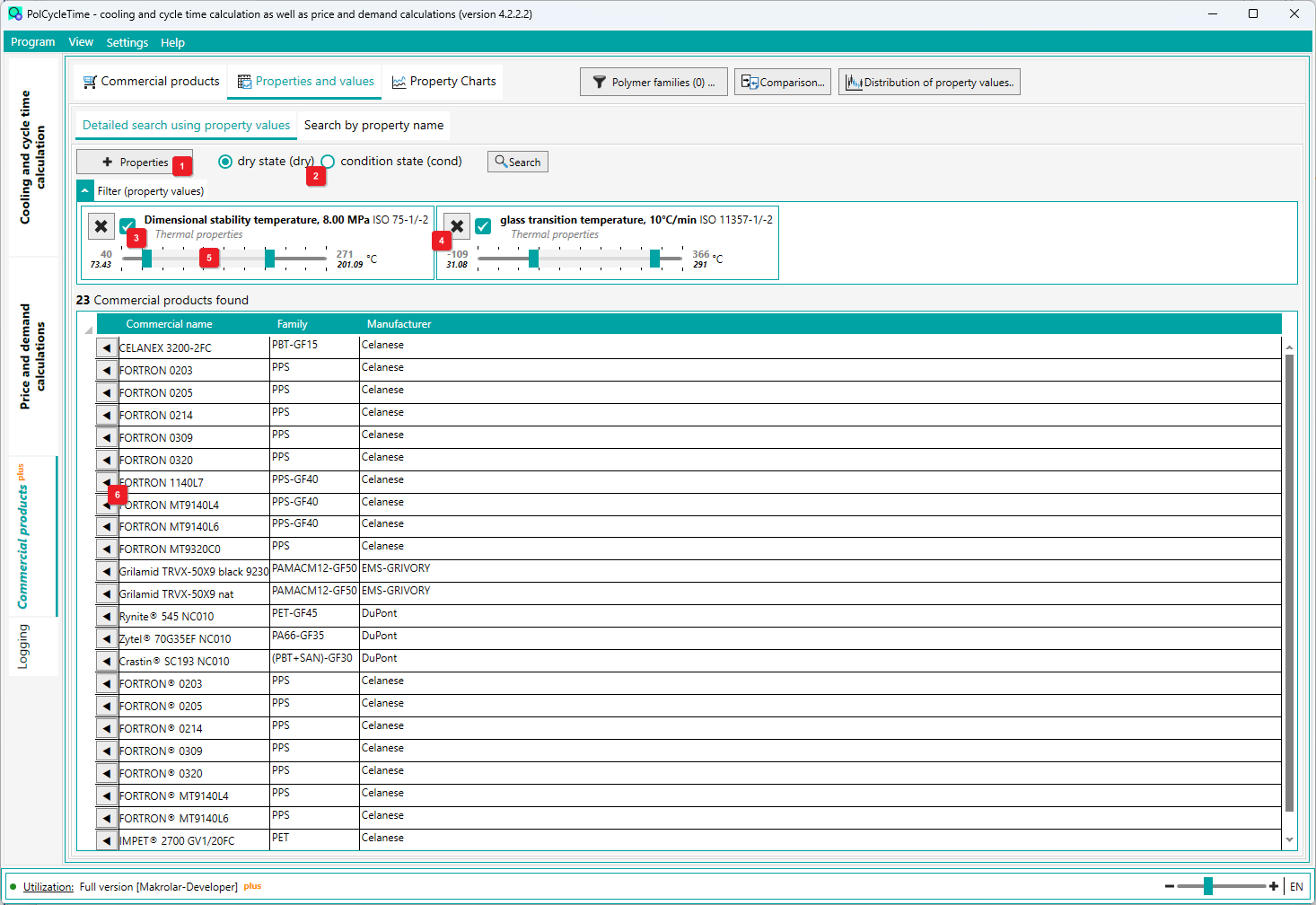
First you have to add the properties 1 you are interested in. Afterwards, these are displayed above the result list with designation, unit, standard, group and possible value range.
You can delete properties from the list again 4 . Or you can leave the property in the list and deactivate it for selection 3 .
To limit the range of values for a search, use the sliders 5 . When the property is newly added, the sliders are preset to the min/max values.
In the database, values for the dry and condition state are stored respectively. This state can also be selected as a filter 2 . In this case, the values from the database are updated. I.e., new values may result for the possible value ranges 5 .
The [Search] button is only active if valid values for "from/to" have been entered for at least one property and the property has been marked as active 3 .
If you click on the button 6 in the result list, the view (for the selected material) changes to the Commercial products tab and shows the details for the material.